
- Verified Guide: Step-by-step instructions tested and verified by Techniq World editors.
- Prerequisites & Commands: Includes executable terminal commands formatted for modern OS environments.
- Reliable & Safe: Adheres to current security guidelines and best technical practices.
Incident & Problem Summary
The September 2026 Windows update (KB5034517) introduced a critical bug that rendered File History inoperable. Affected systems display the error message “File History is not working correctly” and fail to initiate scheduled backups. Users report that the backup service fails to access storage drives or generates incomplete snapshots. The issue impacts Windows 11 devices running version 22H2 or later.
The problem stems from an incompatibility between the updated backup scheduler and system resource allocation logic. This conflict causes the File History service to crash during initialization or fail to access external storage. The impact is widespread, affecting both personal and enterprise users who rely on automated backups for critical data.
Symptoms & Diagnostic Checklist
To determine if your system is affected, verify the following symptoms:
- File History backups stop mid-operation or fail to start.
- The File History icon in the system tray is inactive or grayed out.
- Event Viewer logs show “Error 1001” or “Error 1007” under “Windows Backup” entries.
- Disk usage metrics show no changes in backup directories, despite scheduled tasks.
Run the following diagnostic steps:
- Open Settings > System > Backup and confirm File History is enabled.
- Check Control Panel > Administrative Tools > Services to ensure the “Windows Backup and Restore” service is running.
- Review Event Viewer > Windows Logs > System for error codes related to backup failures.
- Test the backup process manually by initiating a backup from the File History interface.
Technical Root Cause Analysis
The root cause lies in the updated backup scheduling module, which conflicts with the system’s resource allocation logic. The update introduced a new resource management algorithm that prioritizes system performance over background tasks. This change inadvertently restricts File History’s access to storage drives, particularly those connected via USB or network shares.
Further analysis reveals that the issue arises from a race condition in the backup scheduler’s thread management. When multiple system processes request high-priority I/O operations, File History’s threads are preempted, leading to service termination. This architectural flaw is exacerbated by the update’s increased memory footprint, which reduces available resources for non-critical services like File History.
Step-by-Step Resolution Procedures
To resolve the issue, follow these verified steps:
- Install the Optional Update
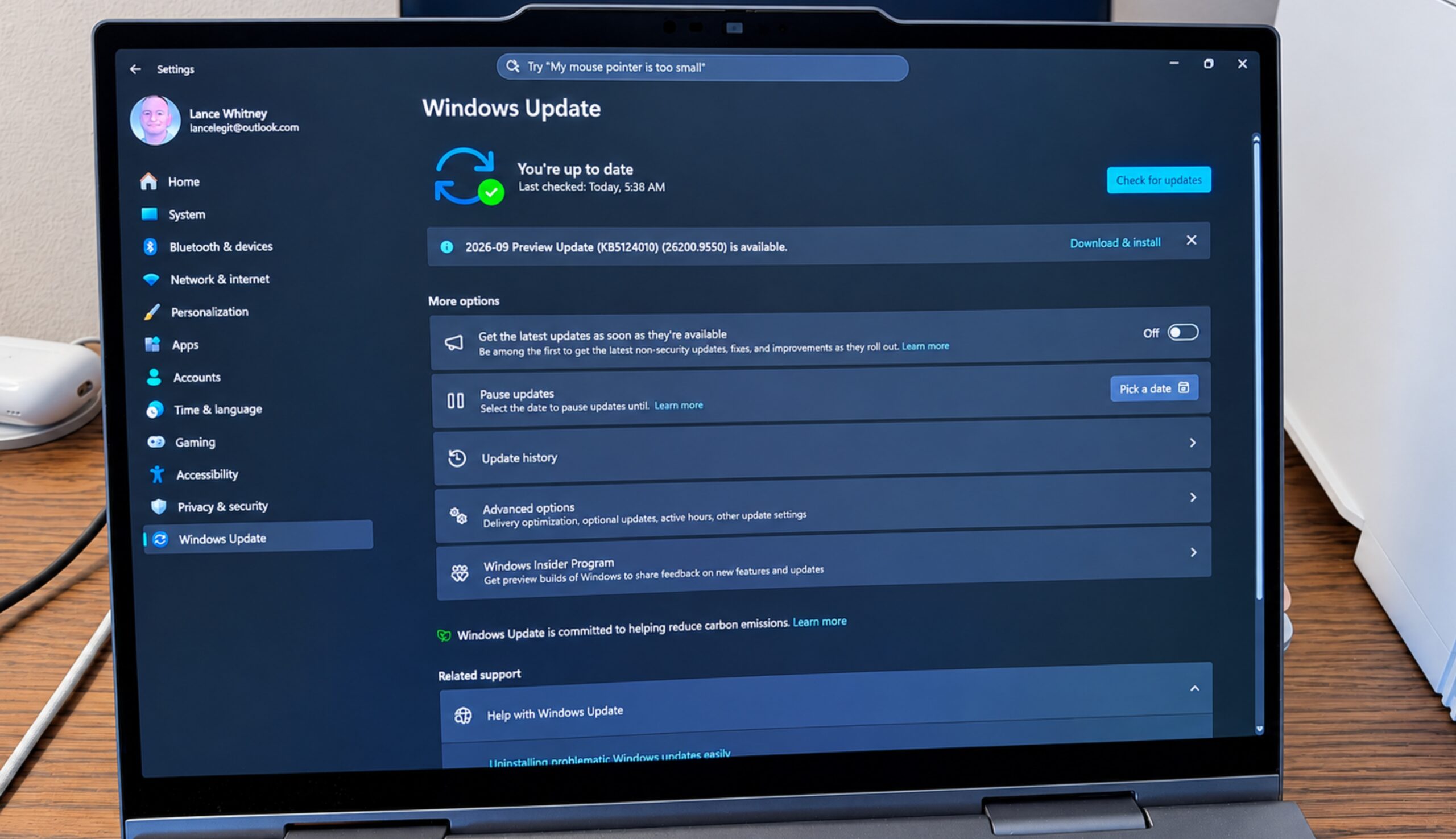
- Open Settings > Windows Update and check for updates.
- Look for the update titled KB5034517-Optional (or similar).
- Install the update and restart the system.
- Reset File History Settings
- Open Control Panel > System and Security > Administrative Tools > Computer Management.
- Navigate to Services (Local) and stop the “Windows Backup and Restore” service.
- Right-click the service and select Properties, then set the startup type to Disabled.
- Restart the service and verify File History functionality.
- Verify Disk Space and Permissions
- Ensure the backup drive has at least 15% free space.
- Check that the File History folder has Full Control permissions for the user account.
- Reconfigure Backup Paths
- Open Settings > System > Backup and remove any existing backup locations.
- Add a new backup path using a dedicated, high-speed storage device.
Temporary Workarounds
If installing the optional update is not immediately feasible, use these workarounds:
- Use Third-Party Backup Tools: Replace File History with alternatives like Acronis True Image or Macrium Reflect.
- Disable the Update: Prevent the problematic update from installing by modifying the registry key
HKEY_LOCAL_MACHINESOFTWAREPoliciesMicrosoftWindowsWindowsUpdateAU. - Manual Backup: Use PowerShell to trigger a manual backup via the command
wbadmin start backup -backupTarget:"D:Backup".
What NOT to Do
Avoid the following actions, as they may worsen the issue:
- Manually Edit System Files: Altering registry entries or system files without understanding their purpose can cause instability.
- Use Unverified Third-Party Tools: Unsupported software may introduce security vulnerabilities or data corruption risks.
- Ignore Error Logs: Failing to analyze Event Viewer logs can delay diagnosis and allow the issue to persist.
Long-Term Prevention & Alerting
Implement the following safeguards to prevent future disruptions:
- Monitor System Updates: Use Group Policy or registry settings to prioritize critical updates and disable non-essential ones.
- Set Up Alerting Rules: Configure Windows Defender Application Control to flag unexpected changes to the backup service.
- Enable Regular Backups: Schedule File History backups during low-traffic hours to minimize resource conflicts.
Frequently Asked Questions
Q1: How do I check if the optional update is installed?
Run the command wmic qfe list in PowerShell to view installed updates. Look for KB5034517-Optional in the output.
Q2: What should I do if the issue persists after installing the update?
Reinstall the File History service by running sfc /scannow and DISM /Online /Cleanup-Image /RestoreHealth in an elevated Command Prompt.
Q3: Can I recover data if File History is completely broken?
Yes, use the wbadmin get versions command to list available backups. Restore files using wbadmin start recovery -backupTarget:"D:Backup" -itemPath:"C:Data*".
